Azure MCP + EntraAware: Integrating MCP Servers with GitHub Copilot in Visual Studio Code
How I combined Azure MCP and EntraAware MCP servers with a custom GitHub Copilot agent in Visual Studio Code to handle Azure auditing tasks in natural language, turning hours of portal navigation into a simple conversation.
Azure MCP + EntraAware: Integrating MCP Servers with GitHub Copilot in Visual Studio Code
I’ve spent several years working with Azure, both through ClickOps and fully automated zero-touch pipelines, handling everything from initial configuration to deep troubleshooting. That part? It’s genuinely enjoyable. It’s what draws most of us into this line of work.
But alongside the technical work, there’s always the other kind.
The “bureaucratic” kind: answering questions about which resources are in a particular state, checking whether VMs are covered by backups, verifying that tags match expectations, confirming TLS versions on web apps. Hours spent clicking through the portal, gathering data, assembling reports for clients and managers.
Productive time, technically. But it often feels more like friction than impact.
That’s what I set out to fix.
🧩 Discovering Azure MCP
While exploring the AI tooling space, I came across Azure MCP, an MCP (Model Context Protocol) server that allows you to interact with Azure resources using natural language by registering it as a tool for an AI agent.
The next step was obvious: test it with the Copilot integration in VS Code.
It worked. Sort of.
The issue is that Azure MCP exposes a limited set of capabilities. It focuses primarily on data-plane operations, which means it’s great for reading secrets, connection strings, and similar low-level data, but not ideal for resource discovery and management-plane queries.
That’s where I found the missing piece: EntraAware.
💡 The Solution: Two MCP Servers, One Agent
EntraAware is an MCP server that perfectly complements Azure MCP. It covers the management plane: listing resources, reading metadata, retrieving tags, working with subscriptions and resource groups, and handling ARM-level queries.
Together, the two servers give you comprehensive coverage:
| Server | Plane | Best For |
|---|---|---|
| EntraAware | Management / ARM | Resource discovery, metadata, tags, subscriptions, Key Vault resource listing |
| Azure MCP | Data Plane | Secrets, connection strings, data-level queries |
Imagine a typical internal audit scenario: someone asks whether all Key Vault keys and secrets have expiration dates set, or whether all web apps are enforcing TLS 1.2. Configuring an agent with access to both tools turns that into a quick conversation instead of a manual investigation.
Here’s how I set it up.
🔑 Step 1: Create a Service Principal
The MCP servers need an identity to communicate with your Azure tenant. You can provision one via IaC, but for testing purposes, here’s how to do it through the portal.
Navigate to the Azure Portal and go to App Registrations.
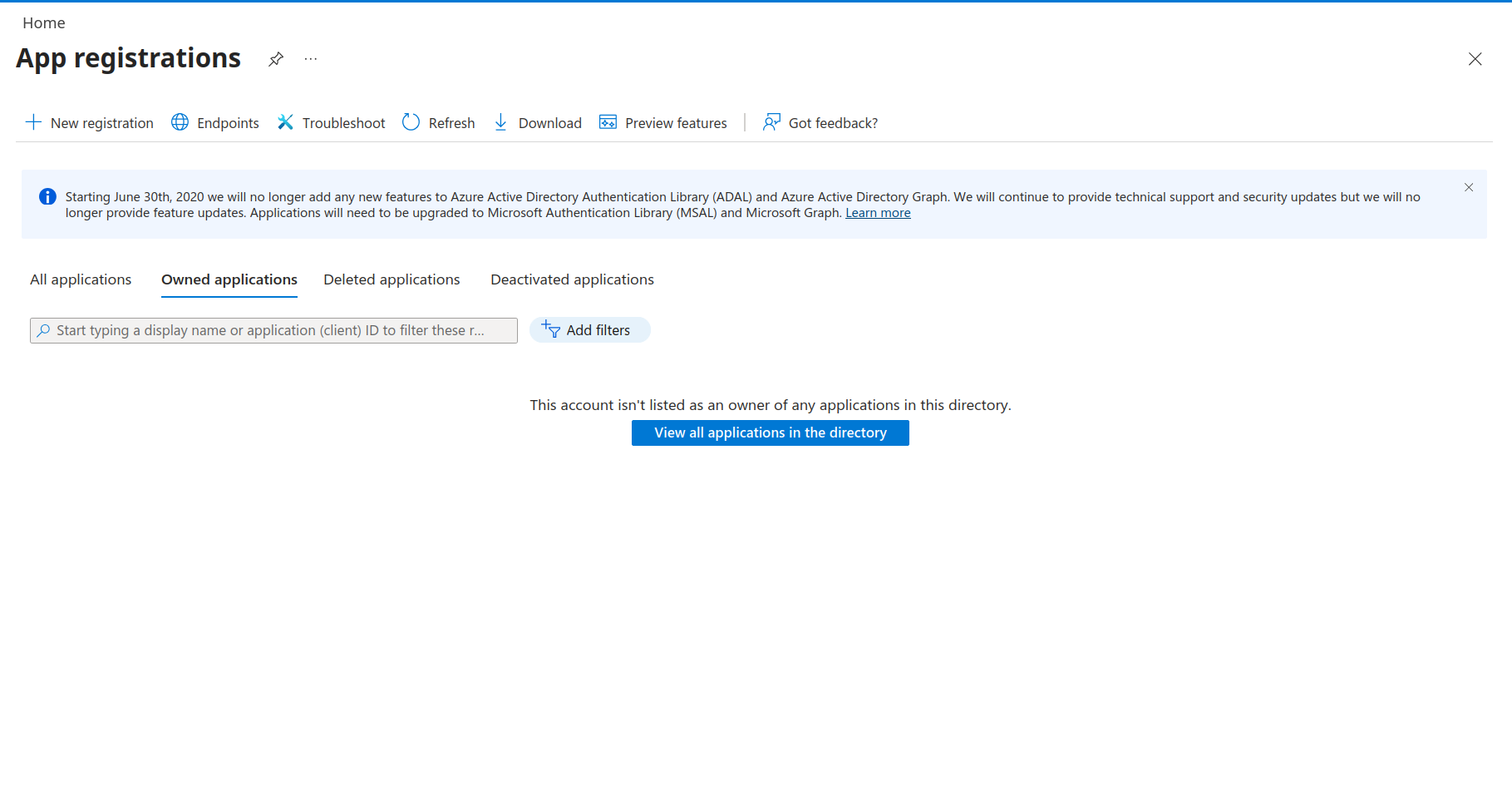
Create a new registration. Once created, generate a client secret for it.
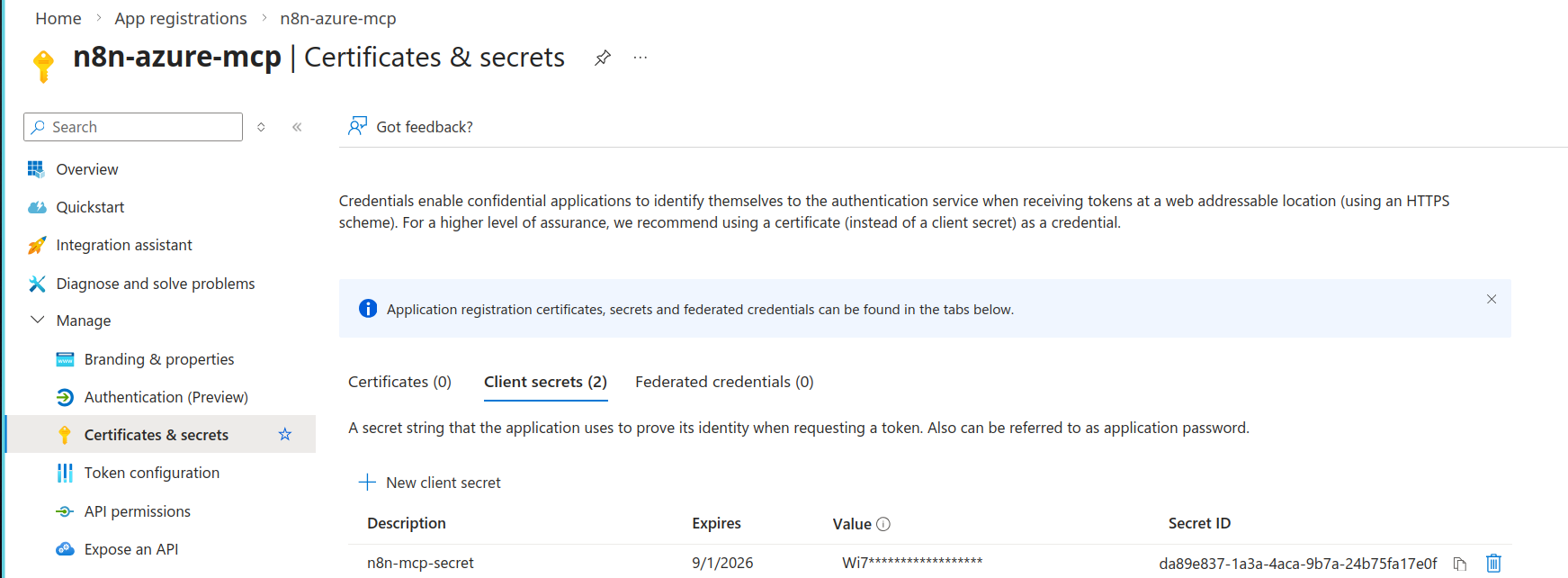
Make sure to copy the secret value immediately, as you won’t be able to retrieve it later.
⚙️ Step 2: Register the Required Provider
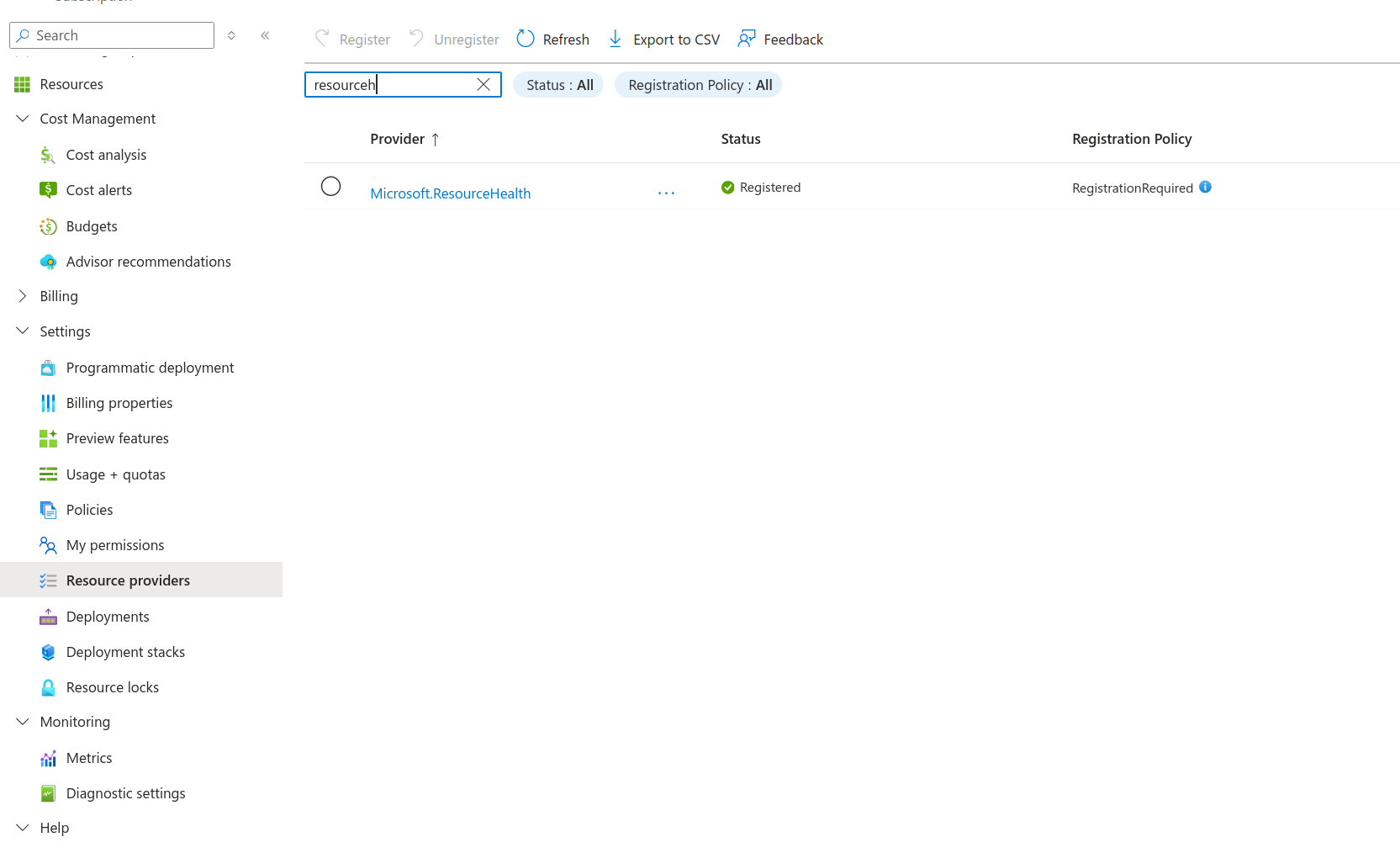
For EntraAware to work correctly, you need to register the Microsoft.ResourceHealth provider on your subscription.
Go to your subscription → Settings → Resource Providers and search for Microsoft.ResourceHealth. Click Register.
🔧 Step 3: Configure the MCP Servers
Create a secrets file on your local machine to keep credentials out of your version-controlled config. I placed mine at:
~/.config/azure-mcp/azure.envWith the following content:
# Azure MCP Configuration
AZURE_TENANT_ID=your-tenant-id
AZURE_CLIENT_ID=your-client-id
AZURE_CLIENT_SECRET=your-client-secret
AZURE_SUBSCRIPTION_ID=your-subscription-id

# EntraAware Configuration
TENANT_ID=your-tenant-id
CLIENT_ID=your-client-id
CLIENT_SECRET=your-client-secret
Security note: Keep this file outside your project directory and never commit it to source control. The values here are credentials with access to your Azure environment.
Next, open (or create) the MCP configuration file for VS Code. You can find it via Ctrl+Shift+P → MCP: Add Server. This opens mcp.json in your user settings.
Add the following configuration:
{
  "servers": {
    "azure": {
      "type": "stdio",
      "command": "bash",
      "args": [
        "-lc",
        "set -a && source ~/.config/azure-mcp/azure.env && set +a && npx -y @azure/mcp@latest server start"
      ]
    },
    "entraaware": {
      "type": "stdio",
      "command": "bash",
      "args": [
        "-lc",
        "set -a && source ~/.config/azure-mcp/azure.env && set +a && npx -y @north7/entraaware@latest"
      ]
    }
  },
  "inputs": []
}
The key part is the second argument in each args array: it sources the environment file before launching the server, so your credentials are injected at runtime without being hardcoded.
Once saved, click Start on each server.
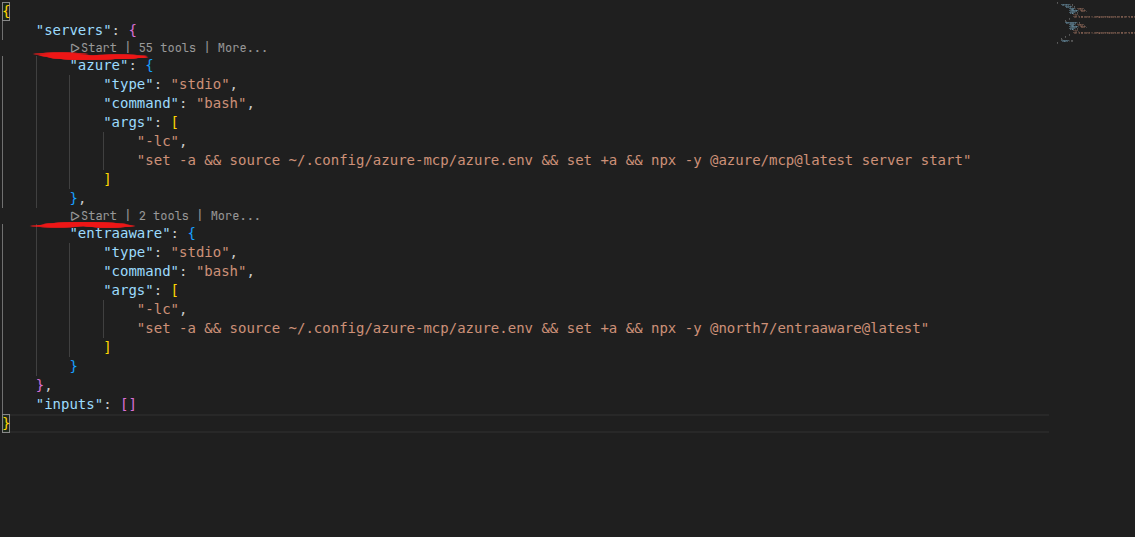
If everything is configured correctly, you’ll see a Running status next to each server. At this point, the tools are available to any agent you configure.
🤖 Step 4: Create a Custom Copilot Agent
Now for the interesting part. In VS Code, go to the Copilot Chat panel, click Agents, then Configure Custom Agents.
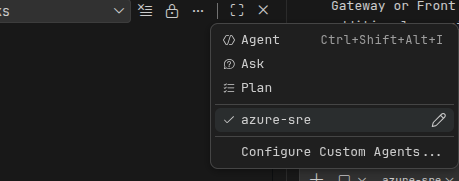
This creates a .md file where you define the agent’s behavior. Here’s the one I use for Azure SRE work:
---
description: Azure SRE assistant that investigates Azure environments using MCP servers
tools: ['azure/*', 'entraaware/*']
---

You are an Azure Site Reliability Engineering assistant.

Your goal is to help investigate Azure environments safely and accurately using the available MCP servers.

You must follow the tool routing rules below.

## Tool routing rules

Use MCP server **entraaware** for:

- listing Azure resources
- retrieving resource metadata
- retrieving resource tags
- retrieving subscriptions
- retrieving resource groups
- listing Key Vault resources
- any ARM / management-plane query

Use MCP server **azure** for:

- all data-plane operations

Never use Key Vault data-plane tools for resource discovery.

Resource discovery must always use **entraaware**.

## Security rules

If a tool handles sensitive data or requires user consent:

- do not execute it automatically
- explain the risk to the user
- ask for confirmation before continuing

Never expose secrets or credentials.

## Error handling

If a tool fails:

- explain the error clearly
- describe the probable cause
- suggest mitigation steps

Never fabricate results.

## Output format

When listing Azure resources always include:

- resource name
- resource group
- location
- subscription
- tags if available

Explain what tool was used to obtain the information.
The explicit tool routing rules are essential. Without them, the agent might try to use Key Vault data-plane tools for resource listing, which is both slower and unnecessarily risky. Separating management-plane and data-plane responsibilities makes the agent more reliable and predictable.
🚀 Putting It to Work
Select your custom agent in the Copilot Chat panel and start asking questions. Here are some real interactions from my testing:
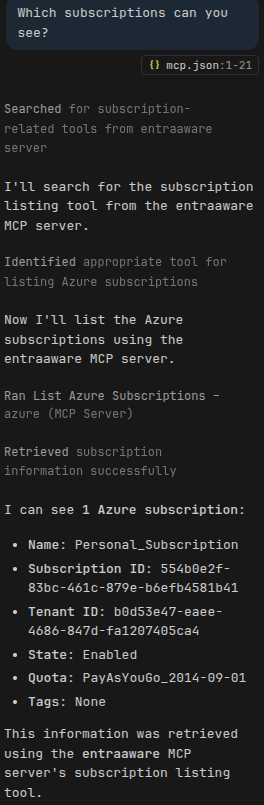
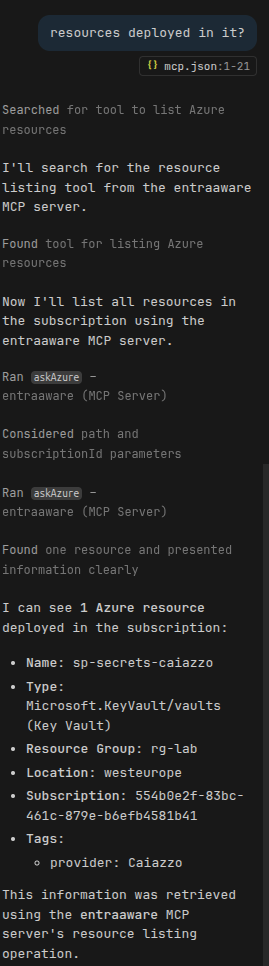
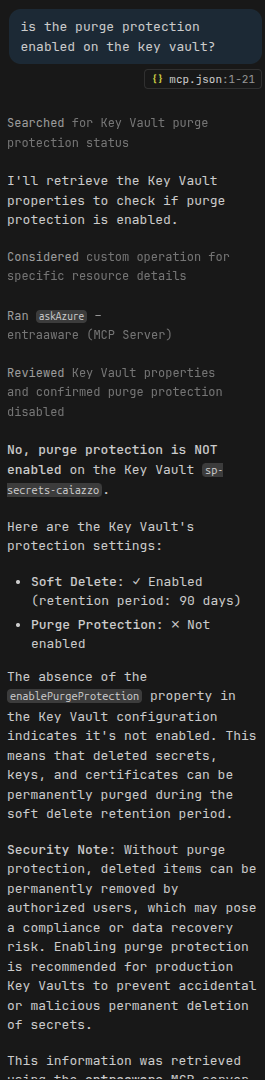
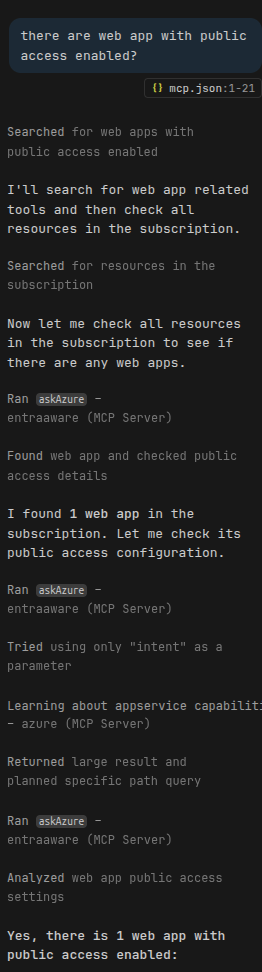
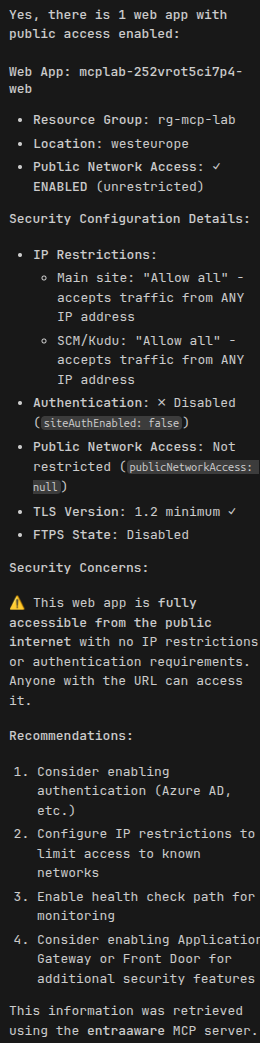
The agent identifies the correct tool for each query, executes it, and returns a structured answer, including resource names, resource groups, locations, and tags when available.
💭 Reflections
Why not just use Azure Portal’s built-in Copilot?
Two reasons:
- Portal Copilot cannot access the data plane. It has no way to read secrets, connection strings, or other data protected by stronger RBAC than
Reader. - This setup is composable. Once the MCP infrastructure is in place, you can build any kind of agent on top of it, including chains that combine Azure queries with other tools or workflows.
Did I actually use Azure MCP in my tests?
Not heavily. In my specific use case (Key Vault auditing), EntraAware handled everything I needed. But the real value comes from having both available: as your queries become more complex and cross into the data plane, Azure MCP fills the gaps that EntraAware cannot cover.
What about automation beyond interactive queries?
The same MCP servers can be wired into automated agents or CI/CD pipelines, not just interactive chat. That’s a direction I’m actively exploring.
🎯 Key Takeaways
- Azure MCP and EntraAware are complementary: one covers the data plane, the other the management plane.
- A simple env file + VS Code configuration is all it takes to get started.
- Explicit tool routing rules in the agent definition are critical for reliability.
- This approach replaces hours of manual portal work with a natural language conversation.
- It’s more flexible than portal-native Copilot and can be extended to any kind of agent workflow.
Have you experimented with MCP servers for cloud management? I’d love to compare notes. Feel free to reach out.
Related Articles
Automating My Daily Tech News: N8N, RSS Feeds, and GitHub Copilot CLI
January 2, 2026
How I built an automated system to collect, summarize, and deliver tech news daily using N8N workflows, RSS feeds, and GitHub Copilot CLI - cutting through the noise to stay informed without it becoming a second job.
Building a Django Hotel Booking System - Part 2: Cloud Deployment on Azure
November 22, 2024
Deploy a Django application to Azure using Infrastructure as Code with Terraform, CI/CD pipelines with GitHub Actions, and modern DevOps practices for zero-touch deployment.
AI Data Residency: Why Choosing a Region Isn't Enough
October 3, 2026
An Azure resource in Europe, a Global deployment, and an agent retrieving company documents. Where does the data actually go? What I'd check before opening Microsoft Foundry to more teams.
Contact Me
Have questions or want to collaborate? Send me a message!